

How to Repair the EFI Bootloader on a GPT Hard Drive for Windows Operating Systems 2026
The UEFI Boot Missing Winload.efi error is a common Windows startup issue that can prevent the operating system from loading correctly. This tutorial explores the topic by discussing Windows boot files, UEFI startup processes, and the role of Winload.efi in system initialization. It is designed for users who want to better understand Windows boot errors without focusing on the repair process itself. The guide provides useful information for anyone researching UEFI boot problems, Windows recovery issues, and startup troubleshooting topics.
Issues addressed in this tutorial:
UEFI Boot Missing Winload.efi
Winload.efi Missing Error Windows
Windows UEFI Boot Problem
BCDedit Command Windows
Windows Boot Configuration Data
UEFI Startup Error
Windows Boot Manager Issue
Windows Recovery Error
Windows Startup Failure
Boot File Corruption
This blog focuses on the UEFI Boot Missing Winload.efi issue and explains how missing or damaged boot components can affect Windows startup functionality.
It provides helpful background information about UEFI firmware, Windows boot configuration, and system recovery concepts.
Use steps mention below step by step


The tutorial is useful for users searching for reliable information about Windows boot errors and startup-related problems. By covering this frequently encountered Windows issue, the blogs helps viewers better understand the topic and its impact on maintaining a stable and functional operating system.
Video Link of Tutorials
- Insert a Windows bootable USB drive or DVD into your PC and restart.
- Press your boot menu key (such as F12, F11, or F8) to select the USB drive.
- On the setup window, click Repair your computer in the bottom-left corner.
- Type
diskpartand press Enter.
- Type
list diskto see your internal drives, then typeselect disk 0(or the number of your main boot disk).
- Type
list volto locate the EFI System Partition (EPS), which is usually around 100MB and uses the FAT32 file system.
- Type
select vol X(replaceXwith the volume number of your EFI partition).
- Type
assign letter=Z(choose an unused letter like Z).
- Type
exitto leave DiskPart. [1]
- Switch to the assigned drive letter by typing
Z:and pressing Enter (replaceZwith your chosen letter).
- Type the command to recreate the boot files:
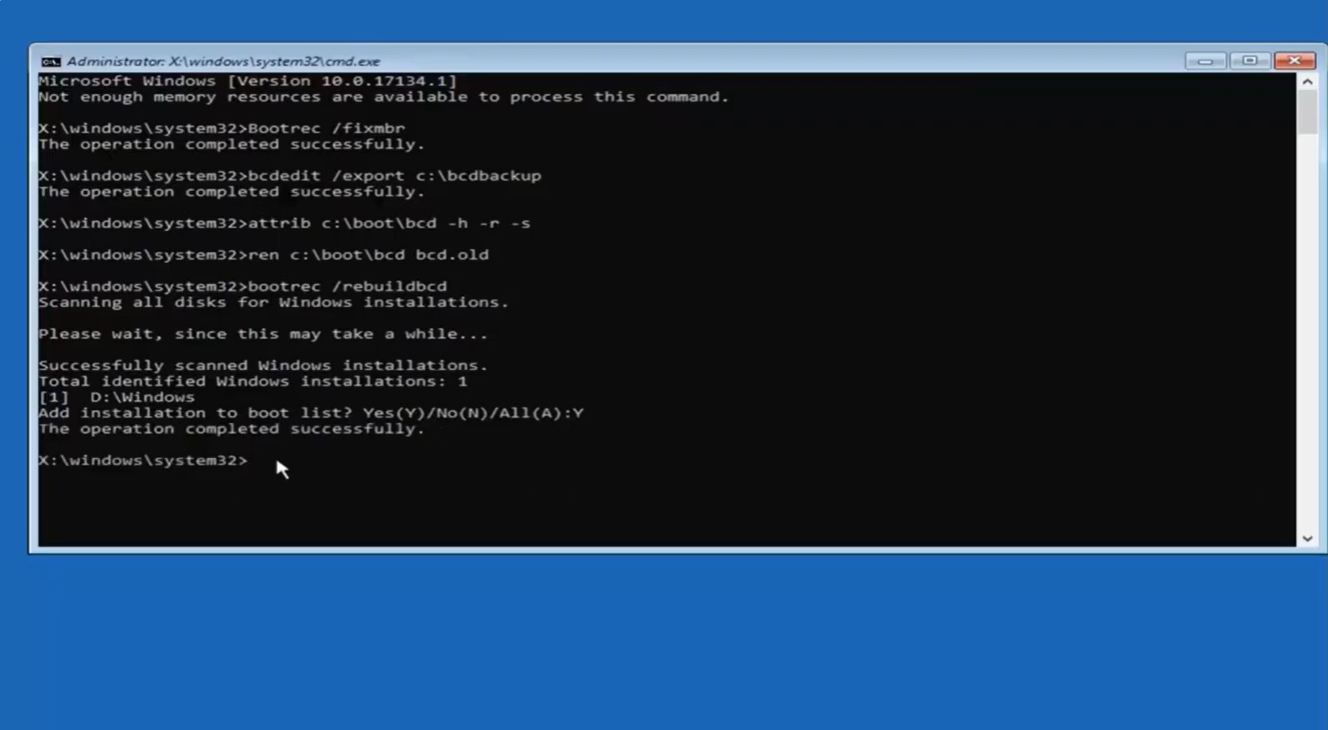
bcdboot C:\Windows /s Z: /f UEFI
(Note: ReplaceC:with your actual Windows installation drive letter if it is different; you can verify this vialist volin diskpart).
- Restart your computer and remove the USB installation drive. [1]

